how to diagnose Wi-Fi issues: a step-by-step tutorial for reliable troubleshooting
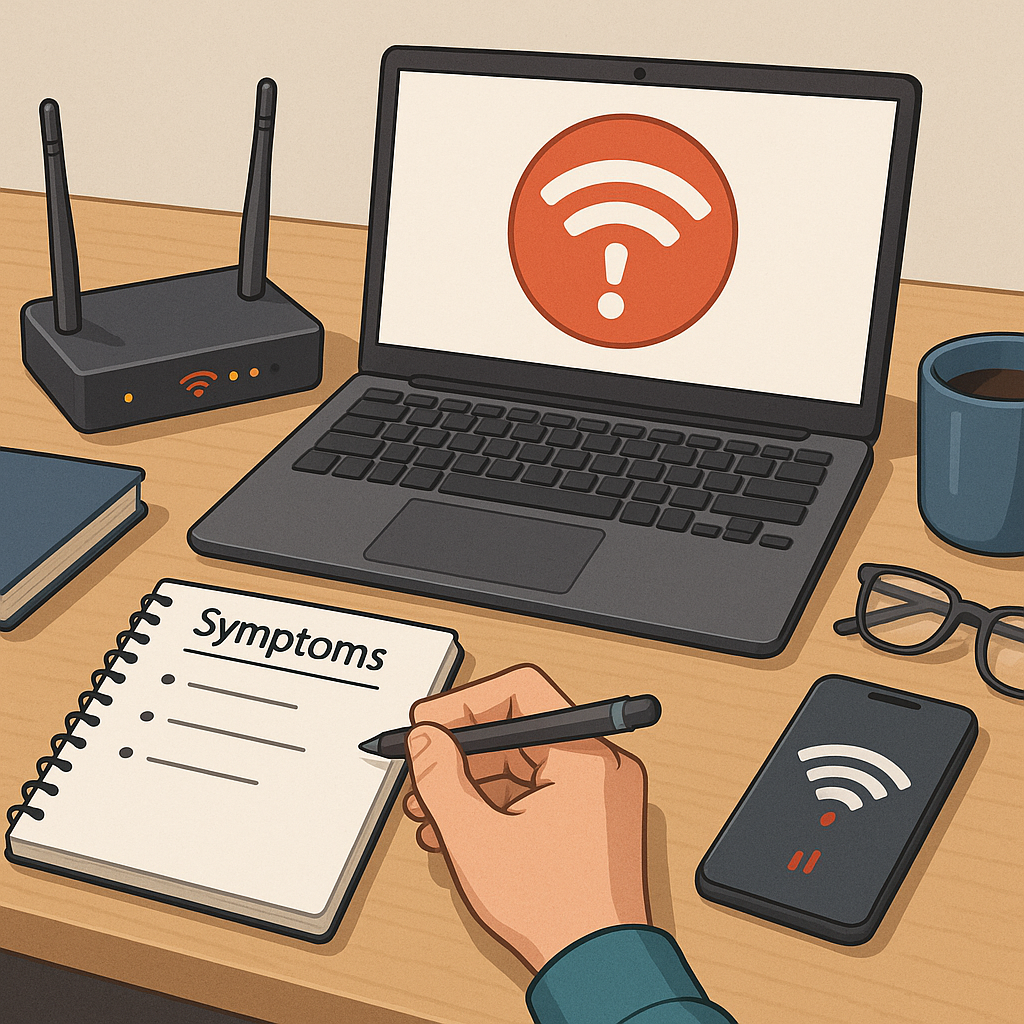
Begin with a clear description of the symptom you observe so you can narrow the scope of the investigation. Note whether the problem affects one device or several, whether the connection drops entirely or becomes slow, and whether the issue is constant or intermittent. Record the time of day and any recent changes to equipment or software, such as a new router, updated firmware, or a recently installed application. This initial log will guide later steps and make it easier to communicate with technical support if you need external help.
Check the physical basics before doing anything complex, because many faults have simple causes. Confirm that the router and modem have power and that indicator lights show normal operation according to the device manual. Inspect Ethernet cables and power leads for damage and reseat them to ensure firm connections. Where possible, temporarily move a struggling device closer to the router to verify whether signal strength is the primary issue. If a wired connection to the modem or router restores service, the problem is likely wireless rather than an internet outage.
Run targeted tests on the devices involved to compare behaviour across hardware and operating systems. Use the device's built-in network diagnostic tools to test connectivity and to view IP configuration details. On a laptop, try disabling and re-enabling Wi-Fi, forgetting the network and reconnecting, and testing with an alternate user account to exclude profile corruption. If only one device is affected, update its network drivers or system software and check for power-saving settings that may reduce wireless performance.
Measure performance with a structured set of tests so you can separate speed, latency and packet loss issues. Start with a basic speed test from a device close to the router, then repeat the same test in the location where performance is poor. Use ping tests to a reliable address to gauge latency and packet loss, and run a traceroute if you suspect routing problems. If you have multiple devices, perform the same tests on each to identify whether the issue is device-specific, location-specific, or affects the whole network.
- Step 1: Identify symptom and scope by noting affected devices and times of occurrence.
- Step 2: Verify physical connections and power to network equipment.
- Step 3: Test devices individually and update network drivers or firmware where needed.
- Step 4: Measure signal strength and run speed, ping and traceroute tests to pinpoint faults.
Investigate radio interference and channel congestion if signal strength is low or speeds vary by location. Modern routers allow you to view wireless channel usage; choose a less crowded channel or enable automatic channel selection. Consider interference from household items such as microwaves, cordless phones, Bluetooth devices and neighbouring networks, and relocate the router higher or to a more central position if practical. If you have a dual-band router, test both 2.4 GHz and 5 GHz bands because they behave differently in range and susceptibility to interference.
Examine router configuration and maintenance as the next step of diagnosis. Check for firmware updates and apply them from the manufacturer’s interface since updates can fix bugs and improve stability. Review DHCP settings, wireless security mode and password strength to rule out unauthorised use. If you make configuration changes, document the original settings so you can revert if required. For persistent problems, a controlled factory reset followed by stepwise reconfiguration can remove corruption while preserving a record of what does and does not resolve the issue.
If you cannot resolve the issue after these steps, gather your logs and test results and contact your internet service provider or a professional technician. Provide them with your symptom log, speed and ping results, the make and model of network equipment, and any recent changes you noted. Also consult related guides on this site for more detailed checks or advanced configuration tips by visiting the How-To Guide category for Build & Automate at further reading and related tutorials. Keep routine notes of changes you make so future troubleshooting is faster and more effective. For more builds and experiments, visit my main RC projects page.
Comments
Post a Comment