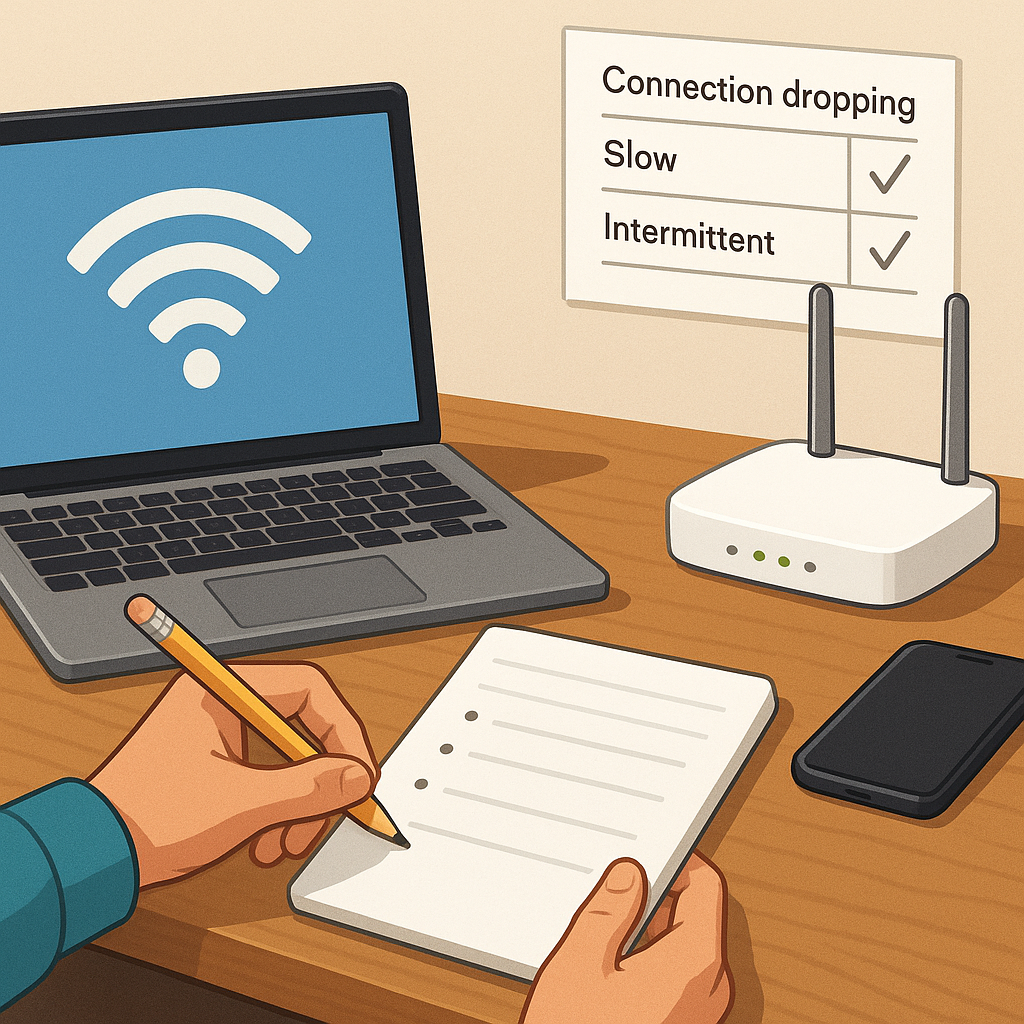
Practical tips on how to diagnose Wi-Fi issues
Wi-Fi problems are frustrating but almost always solvable with a methodical approach. Start by defining the symptom clearly: is the connection dropping, slow, intermittent or completely absent. Note when the issue occurs, which devices are affected and whether it is confined to one room or the whole property. Record any recent changes such as new devices, firmware updates or moved furniture because these details often point to simple causes. A disciplined first pass saves time later and reduces unnecessary calls to support services.
Gather basic information before making changes so you can compare behaviour. Run a speed test in several locations and note both download and upload figures and latency. Try the same test on different devices to check whether a problem is device-specific or network-wide. Check the router’s status lights and the device’s network icons for obvious faults. Also log the time and frequency of drops to spot patterns that might indicate interference from scheduled appliances or external events such as building work.
Perform straightforward physical checks next because they fix many problems quickly. Ensure the router is raised and centrally placed rather than tucked behind a TV or inside a cupboard. Verify all cables to the modem and router are secure and undamaged. Rebooting the modem and router remains a reliable first step because it clears transient faults and forces devices to reassign IP addresses cleanly. While rebooting, check for firmware updates from the router manufacturer and apply them if available and compatible with your setup.
Investigate device-specific causes after physical checks because some gadgets struggle with certain Wi-Fi settings. Update network drivers on laptops and firmware on smart devices where possible. Check power-saving options that may turn off Wi-Fi radios to conserve battery and disable them for testing. Consider connection limits and bandwidth hogs by listing active devices and services that stream video, back up to the cloud or download large updates. If only one device is affected, forget the network on that device and reconnect to rule out a corrupted profile.
Assess radio interference and channel allocation because these are common invisible causes of poor performance. Use the 5 GHz band for bandwidth-hungry devices where range permits and keep 2.4 GHz for longer-range or older kit. Neighbouring networks, microwave ovens, baby monitors and cordless phones can all compete on 2.4 GHz channels, so changing the channel or enabling automatic channel selection may help. Consider relocating the router away from thick walls and metal objects that degrade signal propagation.
- Quick checks: restart router and modem, try a wired connection to isolate Wi-Fi from broadband, move closer to the router, test with another device, and verify firmware and driver versions.
Use diagnostic tools for deeper analysis once basic measures are done. Ping and traceroute tests show whether packets reach the gateway and how latency behaves over time. Wi-Fi analyser apps can reveal channel congestion and signal strength heatmaps for different locations in your property. Review router logs for repeated errors, DHCP lease issues or authentication failures. If you have advanced equipment, enable band steering, experiment with transmit power levels and examine quality of service settings that might prioritise traffic incorrectly.
Keep a record of the changes you make and revert one step at a time if performance does not improve because simultaneous changes obscure the cause. If a wired connection performs well while Wi-Fi remains poor, the problem is likely local to the radio environment or the access point rather than the ISP. Escalate to your provider only after you have tested a wired link and checked the router logs, and consider professional installation for large properties or complex interference problems. For more practical guides on diagnosing and improving home infrastructure, see the related resources on the site at Build & Automate How-To Guide. For more builds and experiments, visit my main RC projects page.
Comments
Post a Comment