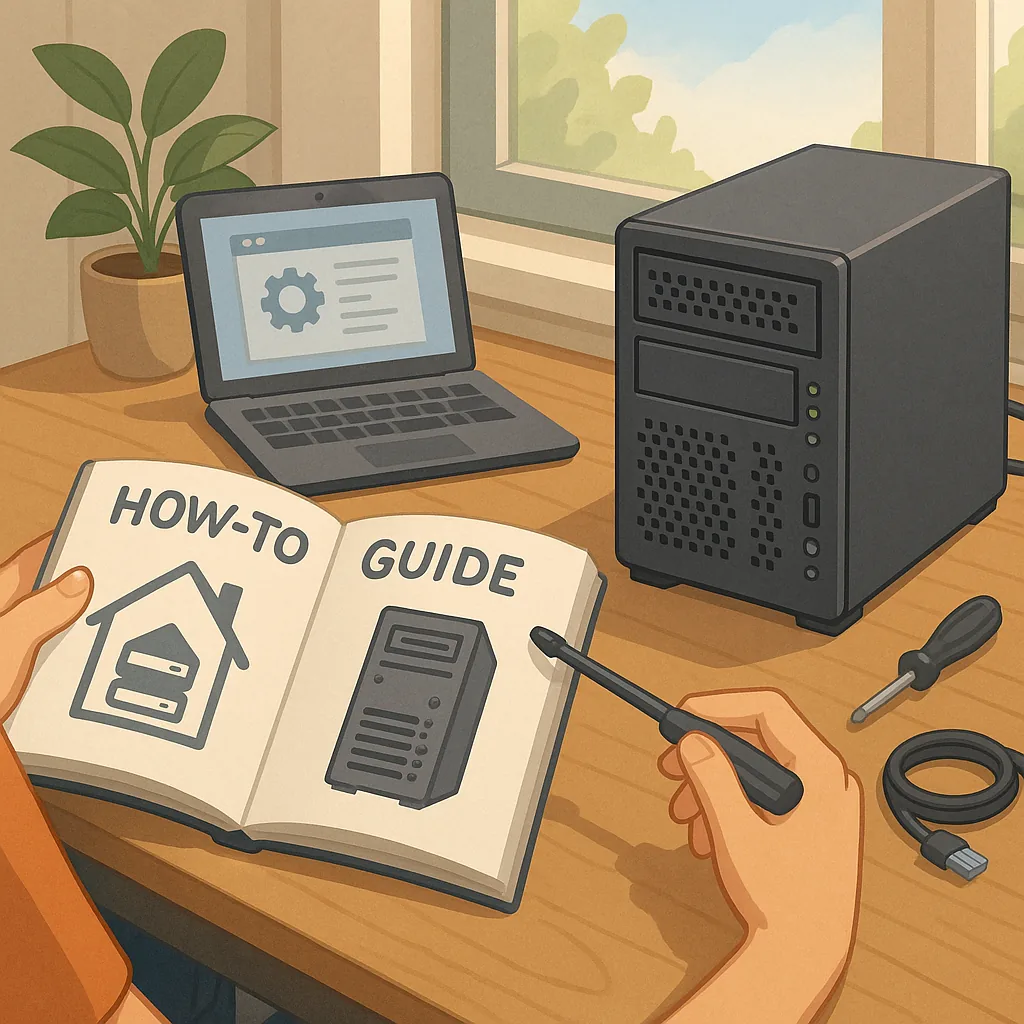
how to set up a home server safely
Setting up a home server can be a rewarding project for anyone wanting greater control over files, media streaming, automation or small self‑hosted services. This beginner's guide focuses on safety and practicality rather than complex enterprise features, so you can build something useful without exposing your household to undue risk. I will cover hardware choices, basic network planning, essential security steps, backup strategy and routine maintenance. The aim is to give clear, actionable steps that someone with modest technical experience can follow and adapt to their needs.
Choose hardware and an operating system that match your goals and skill level. A repurposed laptop or desktop can run file and media services for a small household, while a Raspberry Pi or inexpensive mini PC is energy efficient for lightweight tasks. If you expect heavy disk use or multiple users, consider a NAS or a dedicated server-grade box with ECC RAM. For software, Ubuntu Server and Debian are beginner‑friendly choices with extensive documentation, and lightweight distributions such as Raspberry Pi OS work well on ARM devices. Keep your initial setup simple: add components and services gradually as you learn.
Plan your network layout before connecting the server to the internet. Keep your server on a separate VLAN or at least a separate IP range from devices used for everyday browsing and smart home gadgets to reduce lateral movement risk. Use a router with a reliable firewall and disable UPnP to avoid automatic port forwarding. If you need remote access, prefer a VPN into your home network rather than opening ports directly. Change all default passwords and use strong, unique credentials backed by a password manager to reduce the risk of unauthorised access.
When choosing services to run, follow the principle of least privilege: only enable what you actually need and avoid exposing management interfaces to the public internet. Consider running services in containers with Docker or Podman to isolate them from the host. Secure remote access by using SSH keys instead of passwords, disable root login and restrict login users. Other practical protections include enabling a host‑based firewall like ufw, configuring fail2ban to block repeated login attempts and keeping service accounts with minimal permissions.
- File sharing for backups and media streaming only within the LAN where possible to limit exposure.
- Home automation services on a segregated zone or with strict authentication to prevent compromise of other devices.
- Use HTTPS/TLS for any web interfaces, procuring certificates from a trusted source to avoid sending credentials in plain text.
Backups are essential and not the same as redundancy. RAID protects against disk failure but does not protect against accidental deletion, malware or configuration mistakes. Maintain at least one regular off‑site or offline backup and test restoration periodically so you know your plan works. Use versioned backups for critical files and consider automated snapshotting for virtual machines or important directories. Document your backup schedule and recovery steps, including how to boot from live media and restore files to a new disk.
Maintenance and monitoring keep your server safe over time. Apply security updates promptly and enable automatic updates for non‑disruptive packages where appropriate. Monitor logs for unusual activity and set up simple alerts for disk capacity, service health and failed logins. Regularly review open ports and installed software to remove unused components. Finally, keep a concise checklist of your configuration: network segmentation, access methods, backup locations and recovery steps, and the single page listing additional how‑to materials for further reading can be found in the How‑To Guide collection on this site for related topics and deeper dives into each area. For more builds and experiments, visit my main RC projects page.
Comments
Post a Comment