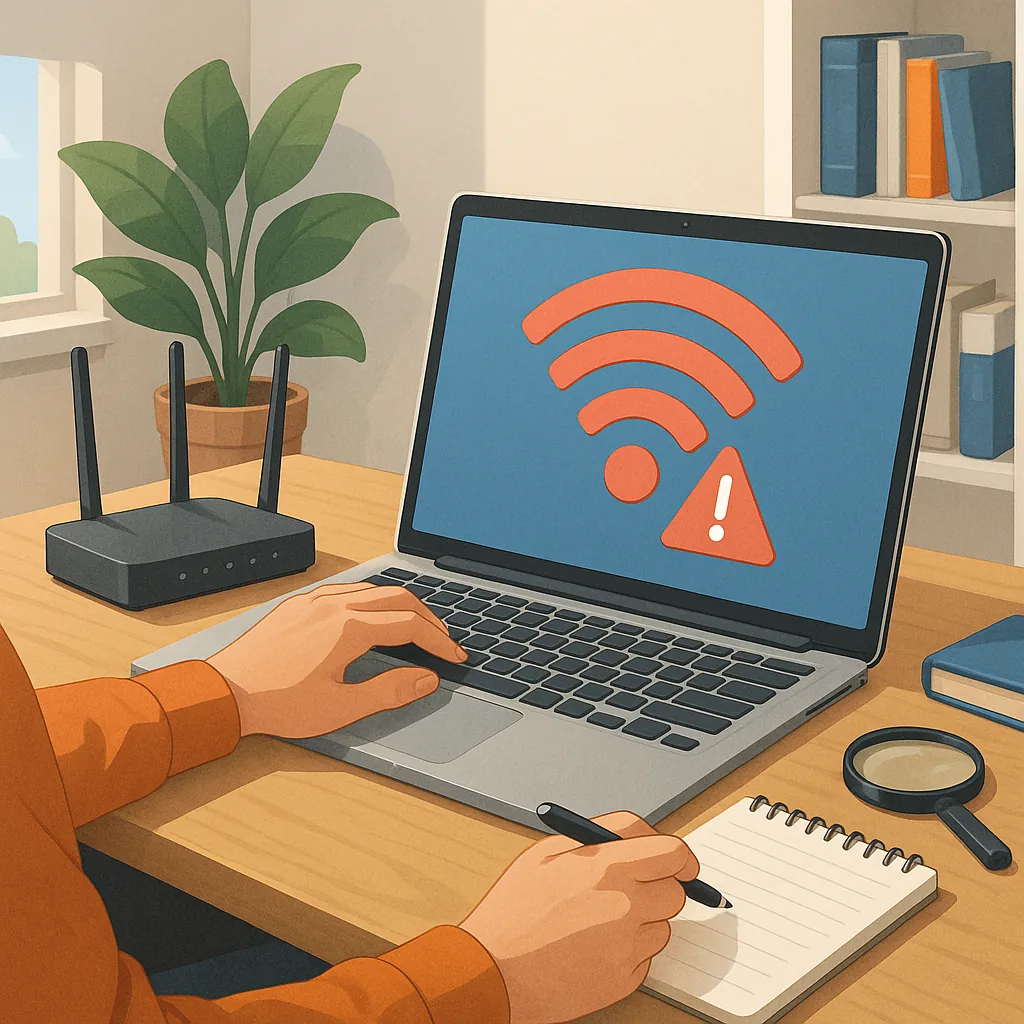
how to diagnose Wi-Fi issues: a step-by-step tutorial for home and small office networks
Wi-Fi problems often feel chaotic, but a systematic approach reduces guesswork and helps you reach a solution faster. This guide takes you through practical steps you can perform without specialist equipment, and it explains when to escalate to a technician or your service provider. The aim is to help you identify whether the issue is with a single device, a local network configuration, or an external service problem. Follow each step in order and document what you observe so that any further support you request is concise and useful.
Begin with simple checks that isolate the problem to either one device or the whole network. Confirm whether multiple devices have the same issue and test both on Wi-Fi and, if possible, on a wired connection. Look at the router’s status lights for obvious faults and try a basic restart: power the router off, wait 30 seconds, then power it on again. Check physical connections to the modem and router, ensure aerials are positioned sensibly, and move any recently added electronics that might be causing interference. Note the exact symptoms you see, such as frequent drops, very slow throughput, or complete inability to connect.
Run diagnostic tools next to capture measurable data. Use a speed test on a device connected to the Wi-Fi and on a wired device to compare results. Use ping to test latency to the router and an external address, and use traceroute to see where delays or packet loss begin. On a smartphone or laptop, open the Wi-Fi settings and check signal strength and whether the device has a valid IP address from the router. If you have a Wi-Fi analyser app, use it to view channel occupancy and signal overlap from neighbours, especially on the 2.4 GHz band where channels are crowded.
Inspect router configuration and security settings as the next step. Log in to the router’s admin interface and check firmware version, wireless mode, SSID broadcasting and encryption type. Use WPA2 at a minimum and prefer WPA3 where supported. Confirm that DHCP is enabled and that there are no IP address conflicts or static leases causing overlap. If many devices are connected, consider whether the router’s hardware is simply at capacity and whether quality-of-service settings are prioritising traffic correctly. If firmware is out of date, install updates carefully and re-run earlier tests after any changes.
Address interference and coverage issues with practical adjustments before buying new hardware. Try moving the router to a more central, elevated location and away from thick walls, mirrors, microwaves and cordless phones. Swap between 2.4 GHz and 5 GHz bands to see which gives more stable performance for your environment and devices. Adjust channel width and pick a less congested channel for the band you use most. If a single room has poor signal, test with a temporary extender or mesh node to check whether the issue is coverage rather than configuration. Use the checklist below to record what you tried and the outcome.
- Restart router and modem, and retest connectivity.
- Compare wired and wireless test results to isolate scope.
- Run ping and traceroute to identify latency or loss points.
- Check router firmware and security settings for errors.
- Relocate router and test different bands and channels.
If issues persist after these steps, gather your test results and contact your ISP or a network professional. Include details such as the devices affected, times when the problem occurs, results of speed tests, ping and traceroute outputs, and any recent changes to your network or property. If you prefer to follow more step-by-step tutorials for related tasks, see our collection of guides in the How-To Guide category at Build & Automate. Keeping a short log of the tests you performed will speed up any support conversation and reduce downtime. For more builds and experiments, visit my main RC projects page.
Comments
Post a Comment