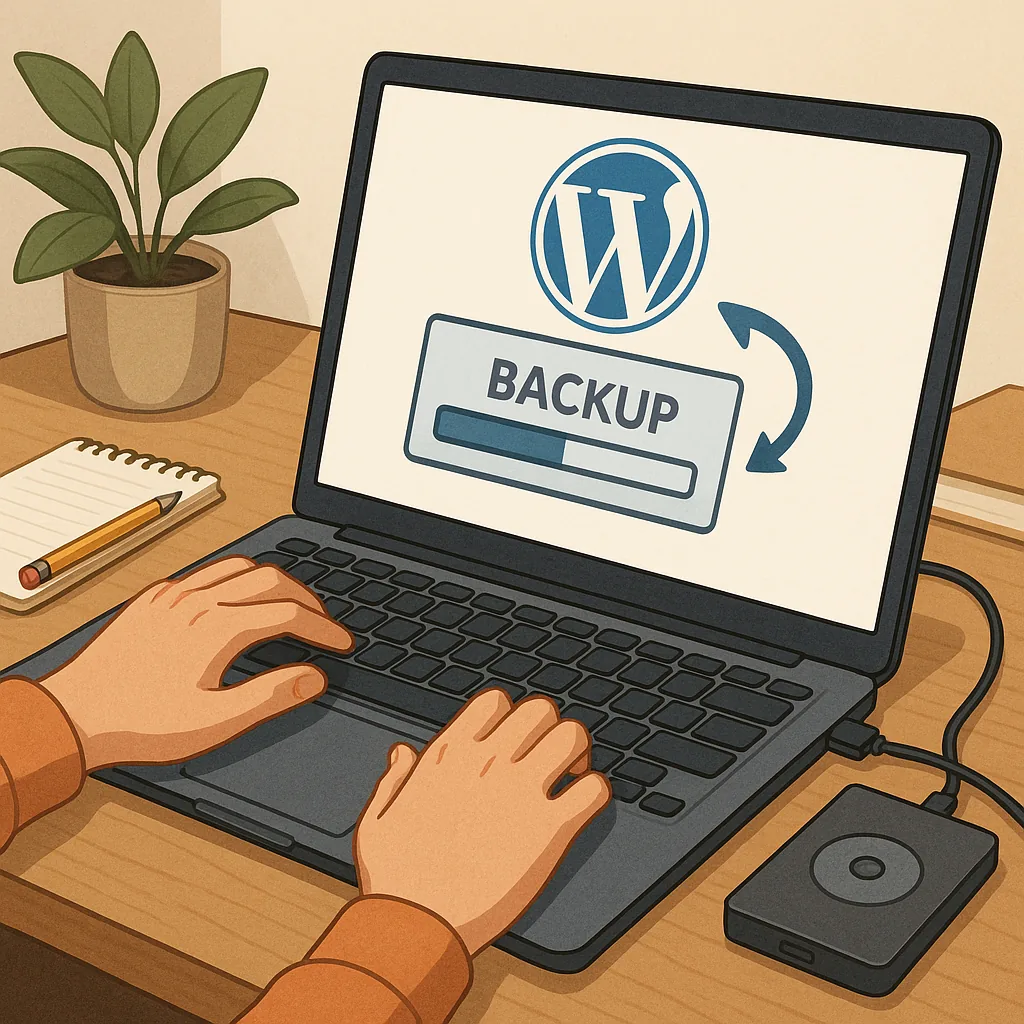
Beginner's guide: how to back up a WordPress site
Backing up a WordPress site is one of the simplest and most effective ways to protect your work from accidental loss, updates that go wrong, or malicious activity. This guide explains the basic options and steps so a beginner can start backing up with confidence. You do not need advanced technical skills to create regular backups, but it helps to understand the two things that matter most: your site files and your database. Files include themes, plugins and uploads, while the database stores posts, pages, comments and settings. Treat both components as essential when planning a backup routine.
The first decision is whether you will use a plugin, your hosting control panel, or manual methods for backups. Plugins provide convenience and automation, hosting control panels like cPanel often provide simple backup tools, and manual backups give you the most control. For most beginners a reputable backup plugin is the easiest route because it handles file and database copies, schedules, and remote storage with minimal configuration. If you prefer not to install a plugin, many hosts offer daily backups as part of their service, which is a valid option for beginners who want low effort protection.
If you choose the plugin approach, look for a plugin that supports scheduled backups, remote storage destinations such as cloud or FTP, and easy restores. Install and activate the plugin, then follow its setup wizard to schedule backups and choose where to store them. Common destinations include Google Drive, Dropbox, Amazon S3, or your own FTP space. Make sure to choose at least one off-site location so your backups are not stored on the same server as the site, which preserves them if the hosting account becomes unavailable. After the initial backup completes, check that the files are present and that the plugin reports success.
For a manual backup using hosting tools, start by backing up your site files via FTP or the hosting file manager. Compress the public_html or www directory into a single zip archive and download it to your local machine or to a remote storage location. Next, export your database using phpMyAdmin or a similar tool: select your WordPress database and use the export function to create a SQL file. Keep both the zip archive and the SQL export together in a safe, organised folder that you can access if you need to restore the site. Manual backups are reliable but should be performed regularly to stay useful.
Scheduling and storage are critical parts of a backup strategy that beginners can set without fuss. Decide how often to back up based on how frequently you update your site: daily for active blogs or shops, weekly for occasional updates, and before any major changes such as theme upgrades or plugin installations. Store backups in at least two separate locations, for example a cloud drive and a local external drive. Label backups clearly with a date and short note describing the site state, and keep several recent versions so you can roll back to a specific point if needed.
Testing your backups completes the cycle and is often overlooked by beginners. A backup is only useful if it can be restored successfully, so test by restoring a copy to a staging environment or a local development setup. Verify that pages load, logins work, and media files appear correctly. If you used a plugin to create the backup, use the plugin’s restore function to practice the process and note any steps you struggled with for future reference. Regular test restores build confidence and reveal issues such as incomplete file sets or missing database tables before they become critical.
Finally, keep a simple checklist and review it monthly to maintain the habit. Your checklist could include: verify scheduled backups ran successfully, confirm off-site storage contains recent files, perform a test restore every few months, and make a backup before any major update. If you want to explore similar beginner-friendly how-to guides on this site, see our collection of practical posts for site owners at other how-to guides on Build & Automate. Following these basic steps will keep your WordPress site safe and reduce downtime in the event of a problem. For more builds and experiments, visit my main RC projects page.
Comments
Post a Comment