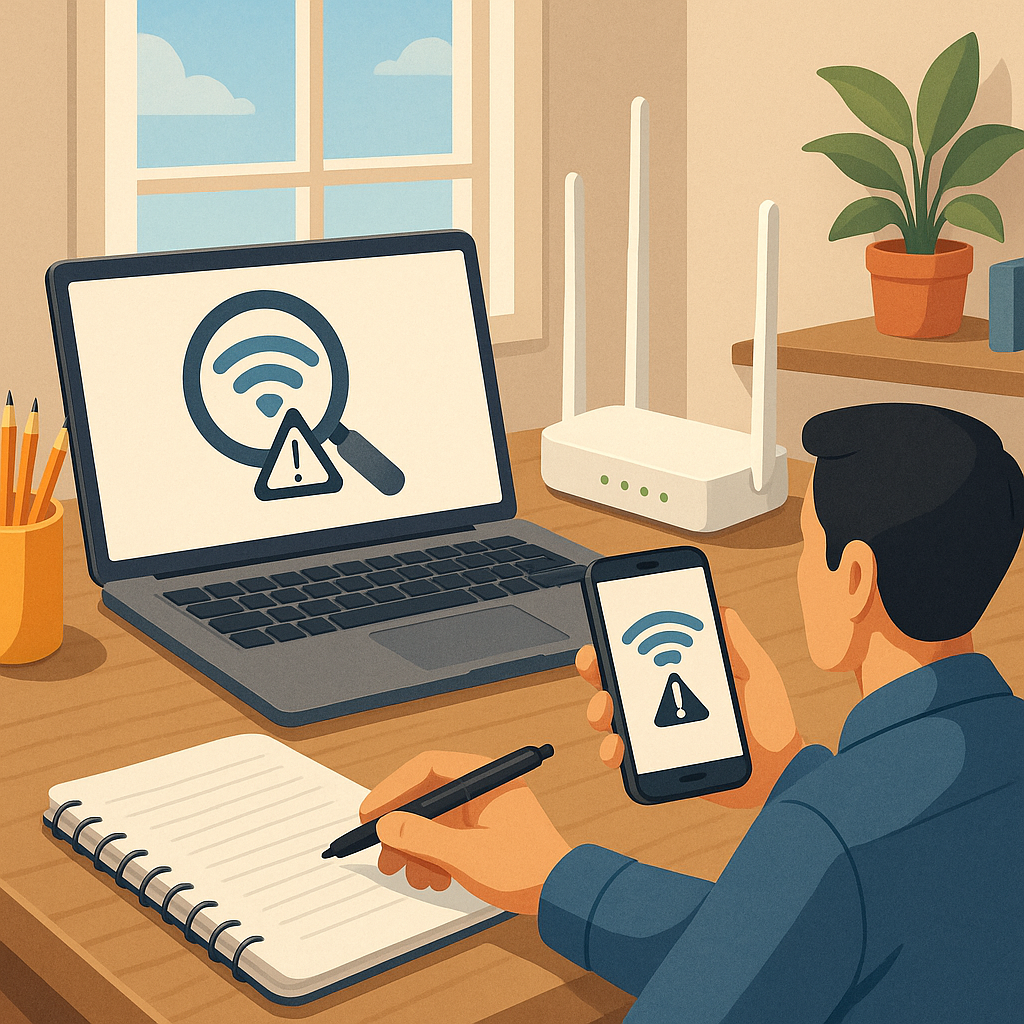
how to diagnose Wi-Fi issues: step-by-step troubleshooting for home networks
Wi-Fi problems range from simple interference to misconfigured routers, and a systematic approach saves time and avoids unnecessary purchases. This guide walks through a clear sequence of checks you can perform with everyday devices so you can identify whether the issue is local to a single device, the router, or your internet service provider before taking further action.
Step 1 is to define the problem and gather a baseline of evidence. Note which devices are affected, what the symptoms are, whether the connection drops or is simply slow, and whether wired devices on the same network are affected. Record the times the problem occurs and whether it affects specific locations in the property. Recreate the fault if possible by running a simple speed test and attempting basic tasks such as loading a webpage, streaming video, or transferring a file to another local device, and note the results.
Step 2 covers the simplest fixes that solve many issues. Power-cycle the modem and router by switching them off for 30 seconds and then back on, ensuring any upstream equipment such as a fibre optical network terminal or ISP-supplied box is also restarted. Check that cables are intact and firmly seated and that the router’s LED indicators show a normal status according to the manufacturer’s guide. On the affected device, confirm you are connected to the correct SSID, that the password has not changed, and that there are no software settings such as airplane mode, VPN or proxy that could be blocking connectivity.
Step 3 looks at signal strength and local interference, which are the common causes of poor wireless performance. Move the device closer to the router to test whether performance improves, and try different rooms to map where the signal is weak. Use simple measurement tools to observe signal strength and noise level so you can compare results before and after adjustments. Helpful quick checks include the following tools and indicators.
- Device Wi‑Fi icon and connection details showing RSSI or signal bars for a rapid qualitative check.
- Smartphone Wi‑Fi analyser apps for channel and noise visualisation when you need more detail.
- Built-in operating system tools on laptops such as netstat, ping and traceroute for basic diagnostics.
- The router’s admin page which often shows connected devices, channel usage and signal reports.
Step 4 is about configuration changes that often restore performance once you have evidence. Test 2.4 GHz versus 5 GHz bands to see which gives better coverage and throughput for each device, and temporarily change the wireless channel to a less congested one if your analyser shows many nearby networks on the same channel. Reduce channel width on 2.4 GHz if interference is high, disable legacy modes that slow the network, and consider enabling QoS (quality of service) if specific applications need priority. Make one change at a time and retest to confirm its effect.
Step 5 is for deeper checks and persistent faults. Log in to the router to review DHCP leases and static IP assignments and ensure there are no address conflicts. Check router firmware and device drivers and update them if the vendor recommends it, because fixes for stability and security are common. If you suspect the issue is with the ISP, connect a single device directly to the modem if possible to verify whether the broadband link is healthy. If all local checks pass but the ISP connection is unreliable, contact the provider with times and test results to help them escalate a line fault.
If none of the previous steps resolves the issue, perform a controlled factory reset of the router as a last resort after backing up settings and noting your ISP login details. After reset, reconfigure the network minimally and retest before restoring every previous optimisation, because a clean configuration can reveal whether a specific setting caused the problem. For more step-by-step tutorials and related guides, see the collection on our How-To Guide label. For more builds and experiments, visit my main RC projects page.
Comments
Post a Comment