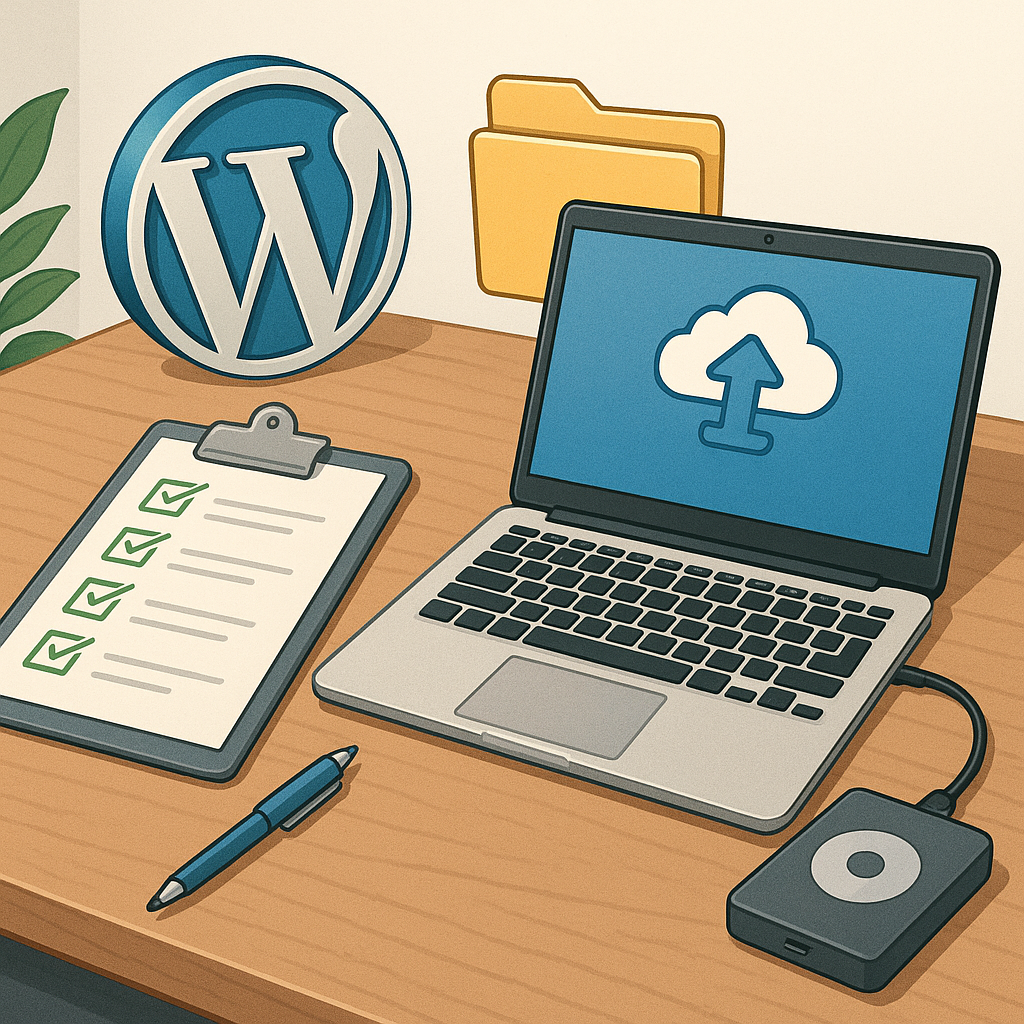
how to back up a WordPress site: a practical checklist guide
Backing up a WordPress site is one of the simplest forms of risk management you can apply, and yet it is often overlooked until a problem occurs. This checklist guide breaks the process into clear, repeatable steps so you can protect your content, settings and custom code without guesswork. The aim is to give you a reliable routine that suits one-off manual backups as well as an automated schedule so you can recover quickly from updates, hacks or hosting failures.
Before you start creating backups, confirm access and resources so the operation is smooth. Check that you have administrative access to WordPress, credentials for your hosting control panel or SFTP account, and the ability to export the database via phpMyAdmin or WP-CLI. Ensure there is enough disk space locally or on the server to hold a full copy of files and the database. Decide where backups will be stored offsite and confirm that permissions allow you to read and write those destinations. Finally, record a brief maintenance window or put the site into maintenance mode for large sites to reduce the risk of partial backups while content is changing.
- Create a copy of the wp-content folder and any custom files in the webroot such as wp-config.php and .htaccess files.
- Export the WordPress database as a SQL file from phpMyAdmin or using WP-CLI with a timestamped filename.
- Compress files and database into a single archive and checksum the archive to detect corruption later.
- Store at least one copy offsite, such as a cloud storage bucket or a separate physical server, and keep one recent local copy for quick restores.
- Automate regular backups and maintain a retention policy that suits the update frequency of your site.
- Verify backups by performing periodic test restores to a staging environment and document the restore steps.
When backing up files, focus on the parts that change and the parts that are irreplaceable. Your wp-content directory contains uploads, plugins and themes and is typically the largest and most frequently changed area. Back up configuration files in the webroot including wp-config.php and any custom code or cron scripts you have installed. Exclude cache and temporary directories to save space, but keep any files that represent custom development work. Use SFTP or the hosting control panel file manager to download files, and consider creating a compressed archive on the server to speed the transfer and ensure consistency.
Exporting the database is equally important because it holds posts, pages, user accounts and plugin data. Use phpMyAdmin to export the database as a SQL file or use WP-CLI with a command like 'wp db export' when you have shell access. Give the export a clear name that includes the site name and timestamp so you can track versions. If your database is large, perform a single-transaction export where possible to reduce the risk of inconsistent records. After exporting, compress the SQL file and store it alongside your file archive, and create a checksum to ensure file integrity over time.
Offsite storage and verification are the safeguards that make backups useful. Keep at least one copy in a different physical or cloud location to protect against server failures and ransomware. Automate backups using scheduled tasks or a reliable backup plugin and apply a retention policy that balances recovery options with storage costs, for example keeping daily copies for a week, weekly copies for a month and monthly copies for three to six months. Periodically restore a backup to a staging environment and walk through the site to confirm that pages load, uploads are present and plugins function as expected. Document the restore procedure so any team member can follow it under pressure.
Finally, treat backups as a living process rather than a one-off task. Review the checklist after major changes such as switching hosts, adding bespoke code or adopting a new plugin that stores external data. Keep a simple log of backups including timestamps, locations and test-restore results so you can audit your protection over time. If you want more practical how-to checklists and templates for routine maintenance tasks, see our How-To Guide collection for related articles and examples that you can adapt to your workflow. For more builds and experiments, visit my main RC projects page.
Comments
Post a Comment