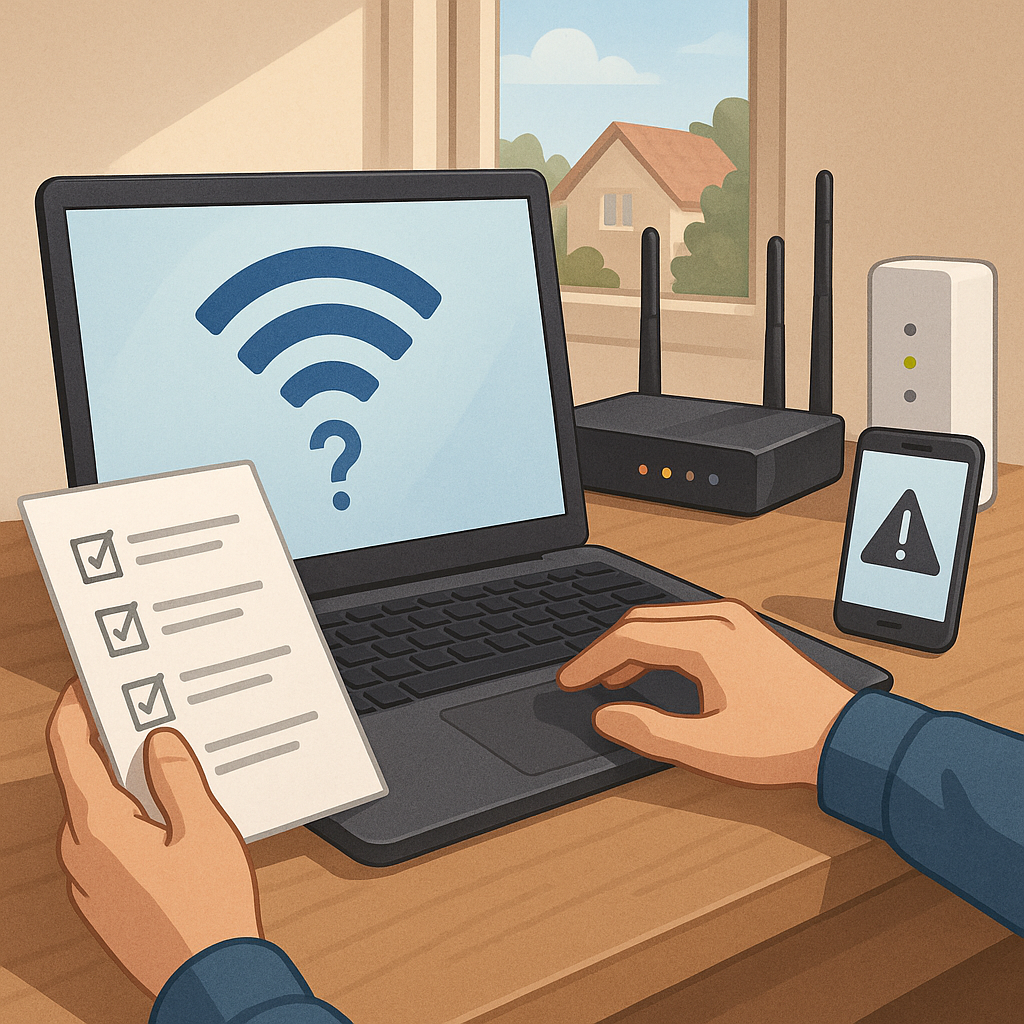
how to diagnose Wi-Fi issues: a beginner's guide for home networks
Slow or unreliable Wi-Fi can be frustrating and it often feels like a mysterious problem to fix. This guide walks through simple, practical checks you can make with no specialist tools and no prior networking experience. The aim is to help you isolate whether the issue is with a device, your router, interference, or the internet connection itself. Take each step slowly and test after each change so you can see what helps improve performance.
Start with the very basics on the device that is experiencing trouble. Ensure Wi‑Fi is switched on and that you are connected to the correct network name and not a guest or neighbour network by mistake. If you cannot join the network check the password and try forgetting and re‑adding the network on your device. A simple reboot of the device often clears temporary glitches, so switch the phone, tablet or laptop off and on again before moving on to other checks.
Next, examine the router and any modem in the chain. Confirm that power lights and internet indicators are showing the normal state according to the device manual. Check the cables to make sure nothing is loose or damaged and that the router has good ventilation and is not overheating. If you suspect the internet service from your provider, test a wired connection by plugging a laptop into the router with an Ethernet cable. If speed and reliability improve over Ethernet, the problem is likely with the wireless portion of your setup rather than the broadband service itself.
Wireless frequency and interference are common causes of poor Wi‑Fi behaviour. Many home routers offer both 2.4 GHz and 5 GHz bands; 2.4 GHz travels further but is more prone to interference, while 5 GHz gives higher speeds over shorter ranges. Household items such as microwaves, cordless phones and baby monitors can interfere with the 2.4 GHz band, and thick walls or floors will reduce 5 GHz range. Use a Wi‑Fi analyser app on your phone to see which channels nearby networks are using, and consider switching your router to a less crowded channel to improve performance.
IP addressing and name resolution problems can make pages fail to load even when the wireless link looks active. Check that your device has an appropriate IP address assigned by the router (typically via DHCP) and that it is not using an old static configuration that does not match the current network. On most devices you can renew the DHCP lease or choose to forget the network and reconnect to obtain fresh settings. If websites fail to resolve, try switching DNS servers in your router or on your device to see if name lookup is the issue.
Firmware and software updates matter for stability and security. Log in to your router’s administration page to check for firmware updates and install them if available, following the manufacturer’s instructions carefully. Also check for operating system updates on your devices. Consider relocating the router to a more central, elevated position and away from metal objects and large appliances, and, if the router has adjustable antennas, orientate them for better coverage. Factory reset the router only as a last resort when you have tried other steps, and make sure you have any ISP login details to hand before doing so.
If you have reached the limits of basic troubleshooting, decide whether the issue is likely a temporary fault with the service provider, insufficient coverage for your property, or an ageing router that cannot cope with multiple devices. Contact your ISP with the results of your tests if the wired connection also shows problems. For persistent range or capacity problems consider upgrading to a modern dual‑band router, adding a wired access point, or deploying a mesh Wi‑Fi system for better whole‑home coverage. For more practical steps and related advice see our related How-To guides on the Build & Automate blog and keep notes of what you change so you can restore settings if needed. For more builds and experiments, visit my main RC projects page.
Comments
Post a Comment