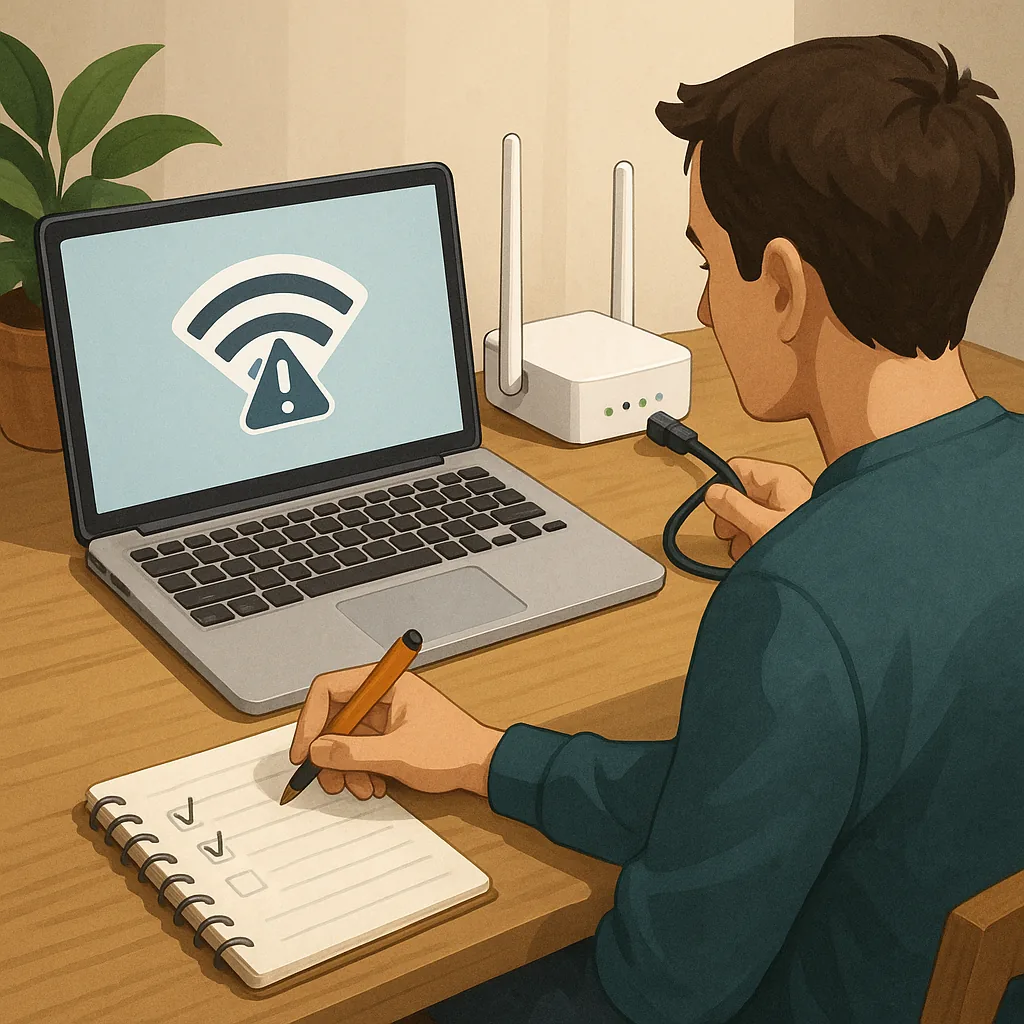
Practical tips: how to diagnose Wi-Fi issues
Wi-Fi problems are a common frustration in homes and small offices, but most issues can be narrowed down with a systematic approach. This guide gives practical tips and tricks to identify whether the fault lies with a device, the wireless network, interference, or the internet connection itself. Work through the checks in order so you build evidence as you go, and avoid changing too many variables at once so you can pinpoint the cause of the problem.
Begin with quick wins: reboot the router and the affected device, confirm the router LEDs show a normal state, and try switching the device between 2.4 GHz and 5 GHz if the router supports both bands. Note whether the problem affects all devices or only a single one, and whether it is persistent or intermittent. Simple restarts and a check for obvious faults will rule out many transient issues and provide a clear starting point for deeper diagnosis.
- Power-cycle router and device to clear transient faults.
- Check physical connections and router placement relative to walls and appliances.
- Test multiple devices to determine scope of the problem.
- Observe whether speeds fluctuate or the connection drops entirely.
Next, assess signal strength and placement because poor signal is a frequent cause of slow or flaky Wi-Fi. Move a laptop or phone closer to the router and see whether performance improves. Be aware that building materials such as concrete, metal and double-glazed windows reduce signal, and household appliances like microwaves and cordless phones can create interference on the 2.4 GHz band. If performance gets markedly better near the router, consider repositioning the device, elevating the router, or adding a mesh node or wired access point to improve coverage.
Check the device side of the equation by updating wireless drivers on laptops and ensuring mobile operating systems are current. On the router, check for firmware updates and any pending reboots that might be queued. On the client, use network settings to forget and rejoin the SSID, and verify IP addressing by checking whether the device has a valid IPv4 or IPv6 address from the router’s DHCP server. If the device has an APIPA address or no IP, renew the DHCP lease or assign a temporary static address for testing purposes.
Carry out connectivity tests that isolate where packets are lost or delayed. Use ping to test the router’s IP from the client, ping an external IP to test upstream connectivity, and run traceroute to spot where latency increases. Measure throughput near the router and at distant locations using a reliable speed test on the device or by copying a large file across the local network. Plugging a device directly into the router by Ethernet is a fast way to determine whether the problem is wireless or upstream with the internet service provider.
When the basic checks point to the router configuration, review settings that commonly affect performance. Switch off automatic channel selection and try a fixed channel on 2.4 GHz to avoid neighbouring network congestion, and select a less crowded 5 GHz channel if possible. Check channel width settings, disable bandwidth-heavy features such as unnecessary QoS rules for testing, and verify whether band steering is forcing older devices onto an unsuitable band. Inspect the router’s client list for unauthorised devices and look at system logs for repeating errors, bearing in mind that a factory reset is a last resort and you should record current settings before you do so.
Finally, adopt a repeatable workflow for troubleshooting so you can revert changes and gather useful information if you need to contact technical support. Document the time of day issues occur, affected devices, and results of pings, traceroutes and speed tests. If you want more structured step-by-step procedures, see our How-To Guide collection for related articles that might help. If everything within your control looks correct but problems persist, share your documentation with the ISP or a network professional for further diagnosis. For more builds and experiments, visit my main RC projects page.
Comments
Post a Comment