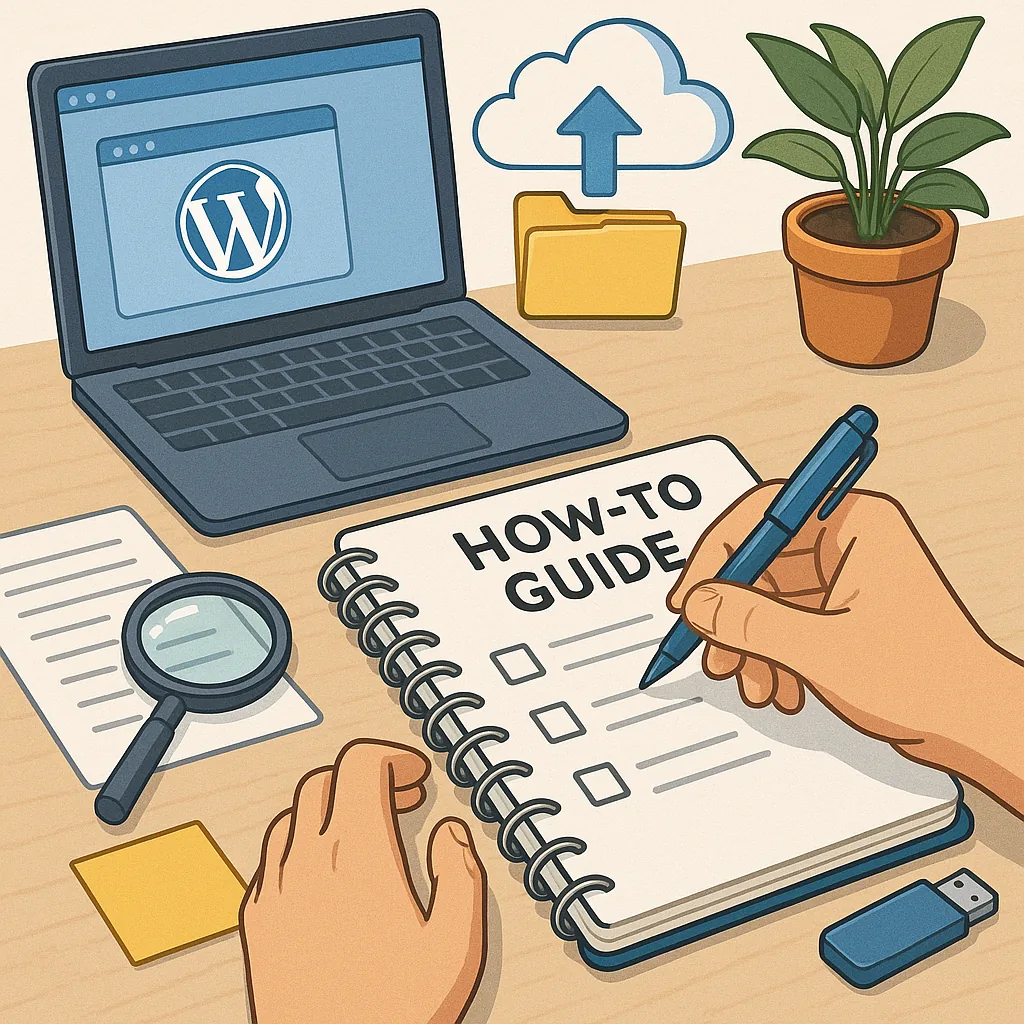
Practical tips and tricks for how to back up a WordPress site
Backing up a WordPress site is a task many put off until it is too late, yet it is one of the simplest protections you can put in place to avoid extended downtime and data loss. This guide focuses on practical tips and tricks rather than deep theory, so you can pick and apply changes quickly to your workflow. The essential concept to remember is that a reliable backup strategy protects both your site files and your database, and it stores copies off the primary server.
Decide a sensible backup cadence to match how often your site changes and how much data loss you can tolerate. For blogs or brochure sites with rare updates a weekly or daily backup may suffice, while e-commerce stores and busy blogs need hourly or real-time solutions. Tip: classify content into low, medium and high change levels and set different schedules for each to avoid unnecessary storage use.
Choose a method that fits your technical comfort and budget, noting that manual backups, plugin-based solutions and hosting-provider backups each have pros and cons. Manual backups give you total control via SFTP for files and phpMyAdmin or WP-CLI for databases, but they are laborious to perform regularly. Plugins automate the process and can push copies to cloud storage, and many hosts provide scheduled snapshots as part of their plans. A useful trick is to pair a plugin with off-site snapshots from your host so you have two independent recovery paths.
- Always back up the database and the wp-content folder, which contains themes, plugins and uploads.
- Store backups offsite — separate physical servers or cloud storage are safer than keeping copies only on the same host.
- Keep at least three restore points and a retention policy that suits your compliance needs.
- Automate integrity checks and test restores regularly to ensure files are usable when needed.
When configuring backups, focus on small changes that yield big reliability improvements. Exclude cache folders and other expendable temporary files to save space, but include any custom uploads, themes and the wp-config.php file. Encrypt backups that contain sensitive information and restrict access with strong credentials rather than leaving archives as publicly readable files. If your host supports SSH keys, use them for automated transfers to remote storage instead of plaintext passwords.
Testing restores is the least glamorous step and the one often skipped, yet it is the most important trick for confidence. Perform a restore to a staging environment after your next scheduled backup so you can verify database integrity and media availability without affecting live traffic. Keep a short checklist for restore drills including importing the database, checking permalink structure and ensuring the site URL settings are correct for the staging environment.
Finally, document your backup plan and train whoever else manages the site so you do not rely on a single person. Keep clear notes on where backups are stored, how to perform a manual restore and where to find the most recent successful verification report. For further how-to resources and related guides on site maintenance, see the compilation of practical walkthroughs here: Build & Automate how-to guides. For more builds and experiments, visit my main RC projects page.
Comments
Post a Comment