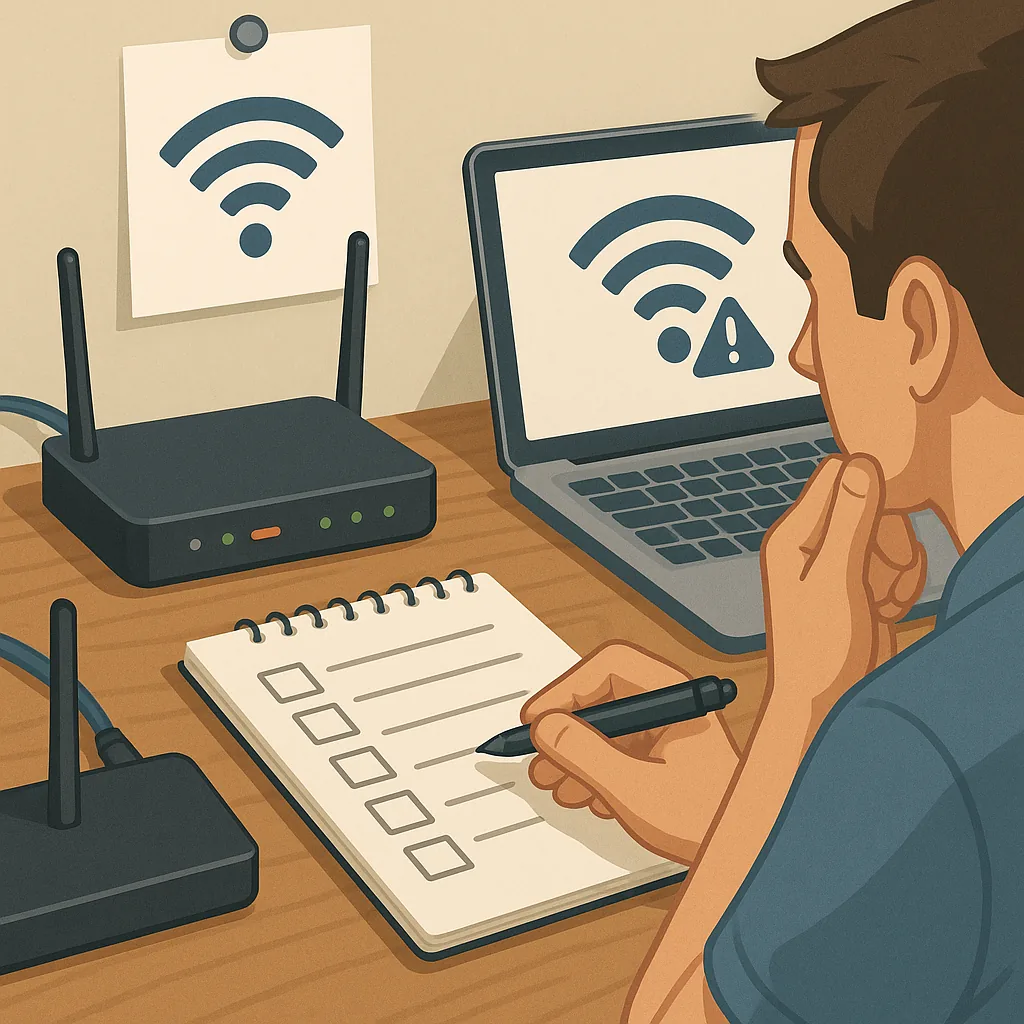
how to diagnose Wi-Fi issues
When Wi-Fi stops behaving as expected it is useful to follow a simple, methodical checklist rather than guessing at fixes. This guide is written for home users and small office managers who need a practical sequence of checks to identify the root cause of slow speeds, frequent drops or no connection at all. The aim is to get repeatable information you can act on or share with a support technician to reduce time spent on trial and error.
Start with the basics because many issues resolve with a quick reset or a physical correction. Check whether the problem affects one device or every device in the network. Inspect the router and modem for warning lights and ensure all cables are firmly connected. Power-cycle the modem and router in sequence, waiting at least 30 seconds between powering down and powering up to allow hardware to clear caches. Confirm there is no known outage from your internet service provider by trying a mobile data connection or by contacting the provider if you suspect a wider fault. Note the time and initial observations so you can compare results after each troubleshooting step.
- Reboot devices, starting with the modem, then the router, then the client device, to eliminate transient faults.
- Confirm physical connections and power indicators on the modem and router are normal.
- Test from multiple devices to determine whether the fault is device specific or network wide.
- Move a client device close to the router to rule out range or obstruction problems.
- Run a wired test from a laptop connected to the router to separate Wi-Fi issues from ISP or modem problems.
- Check SSID and password settings to ensure devices are connecting to the expected network and not a neighbouring open network.
- Scan for channel congestion and switch the router to a less crowded channel if required.
- Verify firmware is up to date on the router and apply updates following the manufacturer instructions.
- Temporarily disable QoS or parental controls to see if they are affecting performance.
- Record signal strength, latency and error behaviour before and after each change for comparison.
Use simple tools to collect objective measurements rather than relying on perception alone. A speed test from a device connected by Ethernet gives a baseline for ISP throughput and helps you determine whether the issue is on the WAN side or within your LAN. On wireless devices use a Wi-Fi analyser app to view signal strength, noise and channel occupancy, and note RSSI and SNR metrics if the app shows them. On a laptop run ping and traceroute to check for packet loss and latency spikes, and inspect the router status page for DHCP leases and log entries that might indicate authentication failures or repeated reboots. Keep these readings alongside the times and device names to create a clear timeline for any further action.
Isolate the problem methodically to narrow the cause. If a wired connection works but Wi-Fi does not, focus on the router, antenna orientation and local interference sources such as microwaves, baby monitors or nearby cordless phones. If only one device has trouble, check its Wi-Fi driver or network adapter settings and try a different user profile or safe mode to rule out software conflicts. Test both 2.4 GHz and 5 GHz bands separately; 2.4 GHz has better range but more interference, while 5 GHz has shorter range but higher capacity. Try a guest network or a temporary open network with minimal security settings to check whether authentication or encryption is the issue, and always restore secure settings afterwards.
When you have documented steps taken and measurements captured, make a decision on remedial action based on evidence. If the ISP connection is slow on wired tests then raise a support ticket with your provider and include the wired speed numbers and modem log extracts where possible. If Wi-Fi is the bottleneck consider repositioning the router to a central location, adjusting antenna orientation, changing channels, or upgrading to a device with better range or mesh capability. For persistent or complex faults keep a concise log of tests and outcomes to hand for escalation to a technician, and consult other practical troubleshooting posts in our How-To Guide collection for step-by-step procedures and further tips. For more builds and experiments, visit my main RC projects page.
Comments
Post a Comment