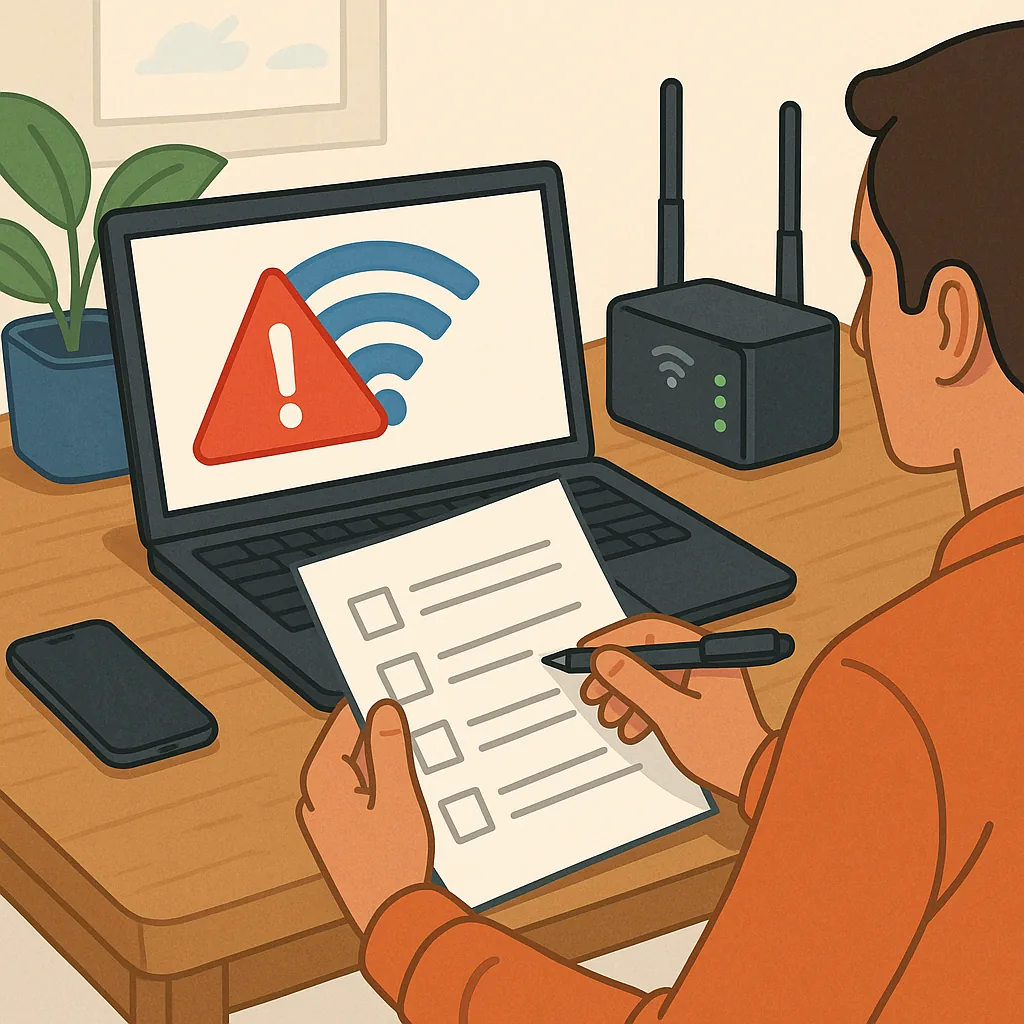
how to diagnose Wi-Fi issues: a checklist guide for practical troubleshooting
Slow or unreliable Wi-Fi can interrupt work, streaming and smart home devices, so a concise checklist helps you move from symptom to solution without jumping to conclusions or buying new kit unnecessarily. This guide assumes a basic home or small office network and explains practical checks you can perform in a logical order, with suggestions for tools and what to note while you test your connection.
Begin with visible and obvious checks: confirm whether the issue affects every device or only specific ones, note when the problem started and whether any changes occurred around that time such as new devices, firmware updates or furniture rearrangement, and check that the router and any extenders show normal power and status lights. Simple reboots of the router and affected device often clear transient faults, so restart both and retest the connection before proceeding to more detailed steps.
Follow this checklist in order and tick items as you complete them to avoid repeating work and to create useful notes if you later contact support. The set of items covers physical setup, interference, configuration and speed testing so you can narrow the fault to hardware, local environment, or upstream issues with your service provider.
- Confirm device placement: move a laptop or phone close to the router and check whether signal strength and speeds improve to rule out distance-related problems.
- Inspect cabling and power: ensure the router, modem and any switches have secure cables, are powered correctly and that no recent storms or power outages coincided with the start of problems.
- Check SSID and band: verify that devices connect to the intended network name and consider switching between 2.4 GHz and 5 GHz to see which band provides better stability for the affected device.
- Look for interference: identify possible sources such as microwaves, baby monitors, other routers, cordless phones or large metal objects that may sit between device and router.
- Review connected device count: a large number of active devices can saturate bandwidth or the router's processing, so temporarily disconnect or pause non-essential devices during testing.
- Run a speed test close to the router and again at the problem location: compare download, upload and latency figures to determine whether the issue is coverage or throughput.
- Use an alternate device and alternate user account where possible: this helps determine whether the problem is specific to one device or profile.
- Check firmware and settings: ensure the router firmware is current, confirm that Quality of Service rules or parental controls are not throttling traffic, and temporarily disable any VPNs or firewall features while testing.
- Test wired connection to the modem or router: if a wired link shows normal speeds but Wi-Fi does not, the fault is likely wireless rather than with the internet service itself.
- Reset network equipment as a last resort: record current settings and perform a factory reset only when other steps fail, then reconfigure the router with secure credentials and appropriate settings.
While running tests, gather objective information: record signal strength values shown on devices, note speed test results and keep a simple timeline of interventions and outcomes. Tools such as built-in wireless diagnostics on laptops, mobile apps that map signal strength and basic packet pings to reliable servers help build evidence about whether faults are intermittent, persistent or related to specific environmental conditions.
If you identify that the problem is outside your local wireless network after testing a wired connection and contacting the router manufacturer, contact your internet service provider and provide the timeline and test results you recorded. Include details about modem synchronisation, downstream and upstream power and any error lights on the modem or router so the provider can check the line and upstream connection without unnecessary back-and-forth troubleshooting steps.
For more detailed, step-by-step checklists and related how-to articles that cover router placement, mesh networks and deciding when to upgrade hardware, see the How-To Guide tag on this site at How-To Guide. Use the checklist above in regular maintenance to prevent common problems and retain your notes for quicker resolution if issues reoccur.
Summary and next steps: prioritise simple moves such as repositioning or rebooting, use the checklist to isolate whether the issue is device, local wireless or service related, and only escalate to resets or equipment replacement after you have objective test results. Keeping a short log of tests and outcomes reduces time spent guessing and helps you make informed decisions about configuration changes or upgrades to maximise the reliability of your Wi-Fi network. For more builds and experiments, visit my main RC projects page.
Comments
Post a Comment